MIGRATION · JAN 19, 2026 · UPDATED OCT 15, 2026 · 6 MIN READ
Shopify Migration Checklist: 47 Steps for a Smooth Launch (2026)
The 47-step Shopify migration checklist we use on every move: audit, data mapping, SEO and redirects, build, testing, launch day and the first 30 days.
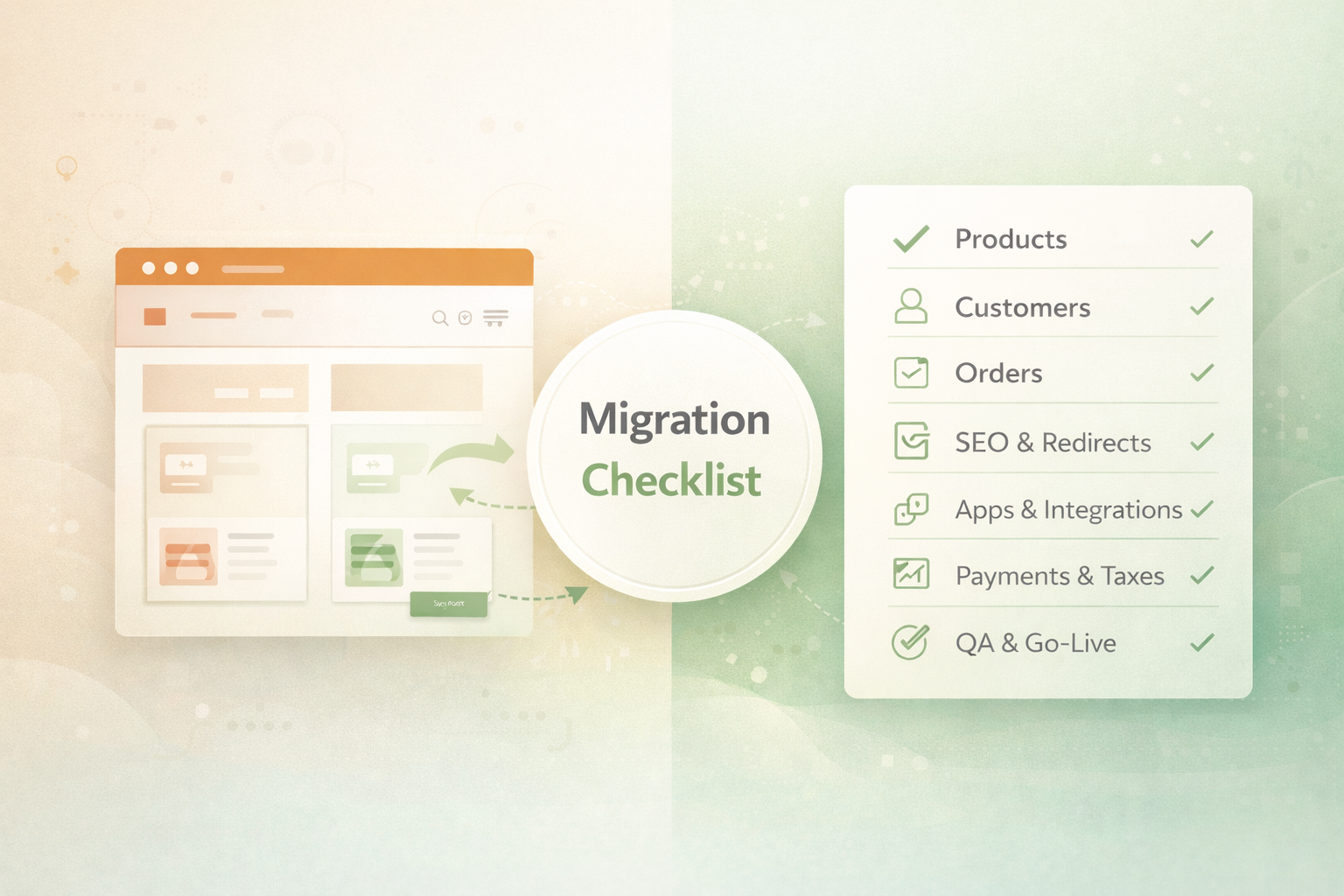
Most migration problems aren't caused by the move itself. They come from steps nobody planned: an extension no one listed, a redirect that was never mapped, a checkout setting nobody tested. This checklist covers the 47 steps we work through on every move to Shopify or Shopify Plus, from the first audit to the weeks after launch.
The short answer: plan and audit first, map your data and URLs before anything moves, build and test on Shopify with a trial import, then launch with a final sync and watch Search Console closely for the first weeks. Small stores usually take 4–6 weeks, mid-size stores 6–10 weeks, and enterprise or B2B builds 3–6 months.
| Phase | Steps | When |
|---|---|---|
| Plan and audit | 1–8 | First 1–2 weeks |
| Map your data | 9–17 | Before any import |
| SEO groundwork | 18–24 | Alongside data mapping |
| Build on Shopify | 25–32 | Main build period |
| Migrate and test | 33–39 | Before launch |
| Launch day | 40–44 | Go-live |
| After launch | 45–47 | First 30 days and beyond |
Phase 1: Plan and audit
- Write down why you're moving. List the problems the new store must solve, such as speed, running costs, checkout or slow changes, and your goals for the next two to three years.
- Choose the Shopify plan. Decide between standard Shopify, Advanced and Shopify Plus based on B2B needs, checkout customization, number of stores and sales volume. See Shopify Plus pricing.
- List every extension, plugin and custom feature. For each one, note what it does and whether a built-in Shopify feature, an app or a small custom app will replace it, or whether you still need it at all.
- List every integration. ERP, OMS, 3PL, PIM, payments, tax, reviews, email and SMS, loyalty, subscriptions and analytics.
- Pick the launch window. Avoid your busiest season and leave a buffer before Black Friday.
- Name an owner for each area. One decision-maker each for catalog, customers, finance, marketing and IT.
- Back up the current store. Take a full export of the database and media before anything moves.
- Set a content freeze date. After it, new products and pages are either created in both systems or held until launch.
Phase 2: Map your data
- Map products and variants. Match old product types, options and attributes to Shopify products, variants, metafields and metaobjects. Shopify allows up to 2,048 variants per product (Shopify).
- Map categories to collections. Choose manual or automated collections, and plan the new navigation menus.
- Clean the catalog. Remove discontinued products, duplicates and unused attributes before they move.
- Make sure every SKU is unique. Integrations, inventory and reporting depend on it.
- Map customers. Profiles, addresses, tags, marketing consent and, for B2B, company accounts.
- Plan customer sign-in. Passwords can't be moved between platforms. Shopify's current customer accounts are passwordless (customers sign in with a one-time email code), so plan how you'll explain the change at launch. See migrating customer accounts.
- Decide how much order history to bring. All orders or a set number of years. Historical orders are imported without emailing customers.
- Map gift cards and store credit. Importing existing gift card balances requires Shopify Plus.
- Map content. Pages, blog posts, policies, images and downloadable files.
Phase 3: SEO groundwork
- Crawl the live site. Capture every URL, including products, categories, blog posts, images and PDFs.
- Export performance data. Search Console clicks and impressions by page, analytics landing pages and your backlinks.
- Record your rankings. Note positions for your most important searches, so you can compare after launch.
- Build a one-to-one redirect map. Shopify uses fixed paths such as /products/, /collections/, /pages/ and /blogs/, so most URLs change. Send each old URL to its closest new page, never everything to the homepage.
- Carry over metadata. Page titles, meta descriptions, headings and image alt text.
- Plan structured data. Product, breadcrumb and review markup on the new theme.
- Update internal links. Point links in product descriptions, blog posts and menus straight to the new URLs, not through redirects.
Our Shopify migration SEO guide covers this phase in detail.
Phase 4: Build on Shopify
- Build or adapt the theme. Rebuild your current design on a fast theme, or redesign if it's time. Check it on phones first.
- Set up payments. Shopify Payments where available, plus PayPal and buy-now-pay-later options your customers use.
- Set up shipping. Zones, rates, carriers, local pickup and delivery rules.
- Set up taxes. Registrations, tax-inclusive or exclusive pricing, and invoice details. Check the settings with your accountant.
- Set up Markets. Currencies, languages and domains for each country you sell to.
- Install only the apps you need. Each app should replace something on your step 3 list.
- Connect your integrations. Decide which system owns each type of data, then connect ERP, 3PL, email and others. See our Shopify NetSuite integration guide for an example.
- Set up staff accounts. Give each person only the permissions they need.
Phase 5: Migrate and test
- Run a trial import. Move a full copy of your data into the new store before launch.
- Check record counts. Products, variants, customers and orders should match the old store.
- Spot-check records. Open a random sample of products, customers and orders and compare them field by field.
- Test checkout end to end. Every payment method, discount, gift card and shipping option, plus refunds.
- Test integrations. Orders should reach your ERP or 3PL, and stock should sync back.
- Test redirects. Import them in bulk from a CSV file, then test your top pages by hand and the full list with a crawler. Look for chains and loops (Shopify Help Center).
- Test on phones and for speed. Check mobile layouts, page speed and accessibility.
Phase 6: Launch day
- Run the final sync. Import the orders and customers created since the trial import.
- Point your domain to Shopify. Set the primary domain and confirm the SSL certificate is active.
- Remove the storefront password and any noindex settings. A forgotten password page or noindex tag can take a store out of search.
- Submit your sitemap. Add /sitemap.xml in Google Search Console and Bing Webmaster Tools.
- Place live test orders. Use real payment methods, then refund them.
Phase 7: After launch
- Watch Search Console daily for two weeks. Fix new 404 errors and redirect gaps as soon as they appear. Google says rankings can move while it recrawls a site (Google Search Central).
- Tell customers how sign-in works now. A short launch email or banner explaining that they sign in with a code sent to their email, and that their order history is there.
- Retire the old platform carefully. Keep it available until finance and support sign off, and keep your redirects in place indefinitely.
The order matters
Import products first, then customers, then orders. Orders refer to both the products bought and the customer who bought them, so importing them last keeps the links between records intact.
Frequently asked questions
How long does a Shopify migration take? Small stores usually take 4–6 weeks, mid-size stores 6–10 weeks, and enterprise or B2B builds 3–6 months, depending on catalog size, integrations and custom features.
Can customer passwords be migrated to Shopify? No. Passwords are stored encrypted and can't move between platforms. On Shopify's passwordless customer accounts, customers sign in with a one-time email code and see their imported accounts and order history.
Will we lose our Google rankings? Rankings can move for a few weeks while Google recrawls the site. With a complete one-to-one redirect map, carried-over metadata and close monitoring, they usually settle.
Should we migrate historical orders? Usually yes, at least for recent years. It keeps customer accounts, support and reporting complete. Historical orders are imported without emailing customers.
Can we keep selling during the migration? Yes. The old store keeps trading until launch day, and a final sync brings across orders placed during the build.
What's the biggest migration risk? Skipping the planning steps. Unlisted extensions, unmapped URLs and untested checkouts cause most launch problems.
Planning your move to Shopify?
We work through every step on this list with you, from the audit to the weeks after launch. See how we handle Magento, WooCommerce, BigCommerce and Neto migrations, or book a free migration consultation.
Have a project in mind?
Talk to the team behind complex migrations, custom apps and government platforms — book a free 30-minute call or send us a note.